Access control and sharing responses
Forward the assessment to colleagues
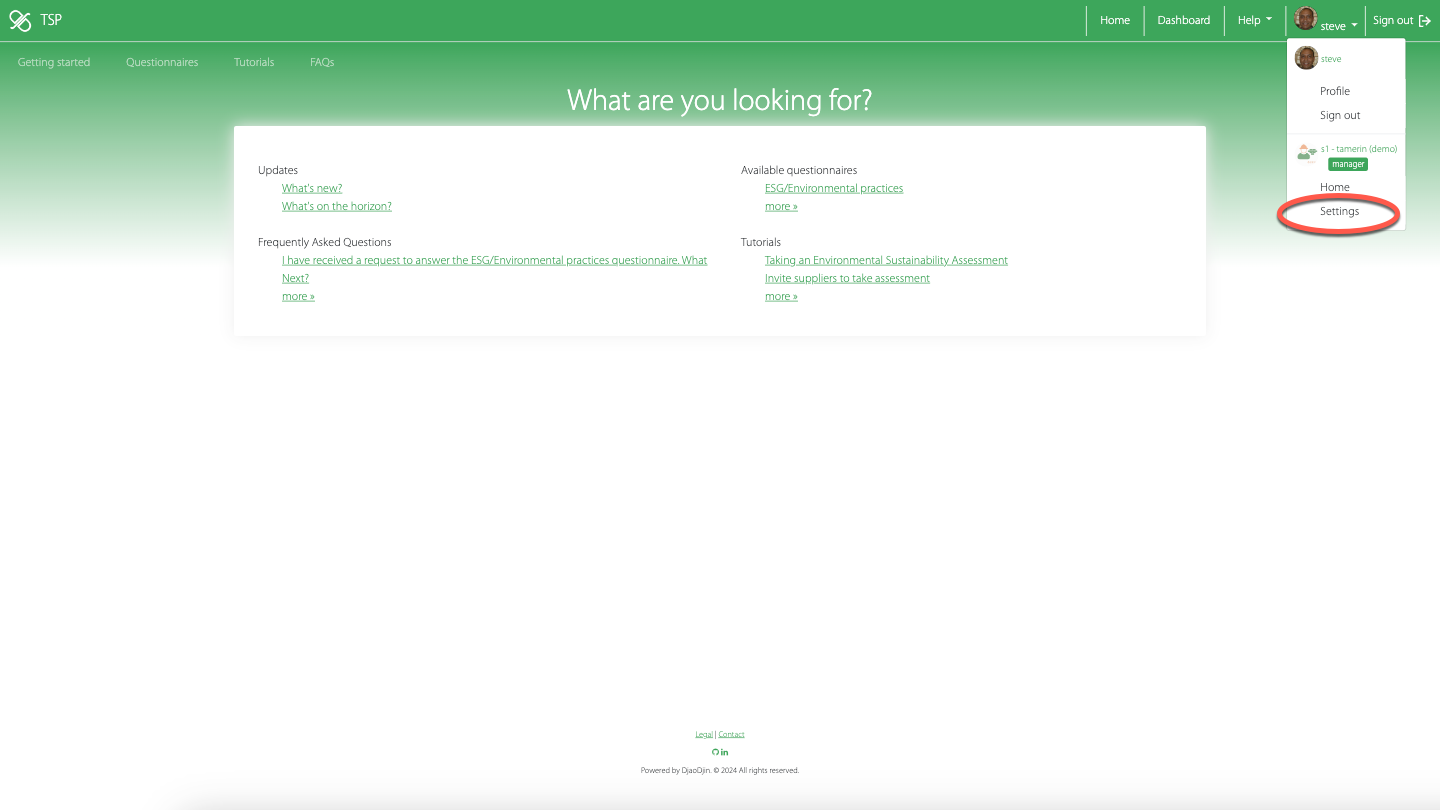
From any screen, click the profile menubar item option (top right), then Settings under the organization name, then contributors (left side of page).
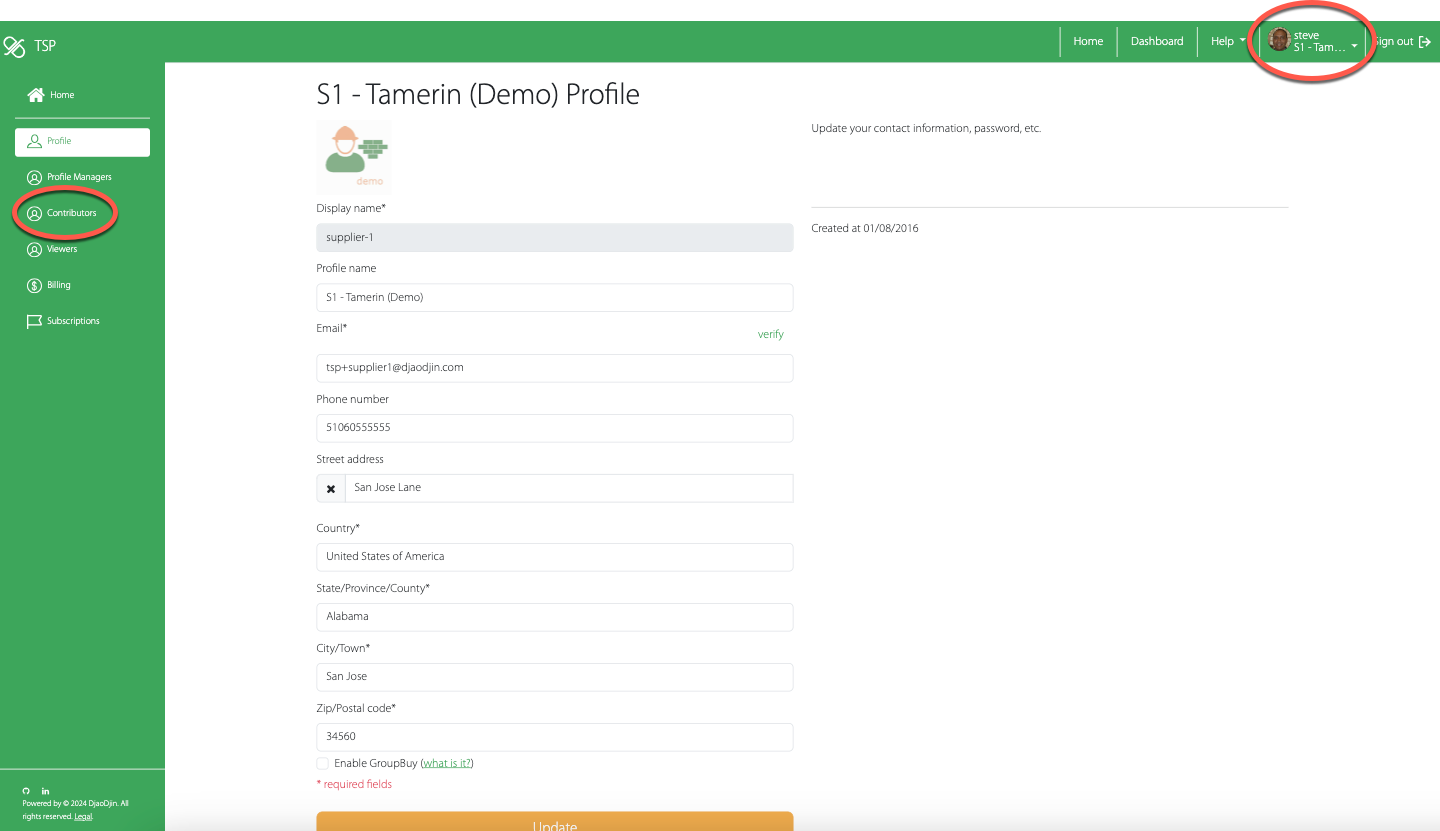
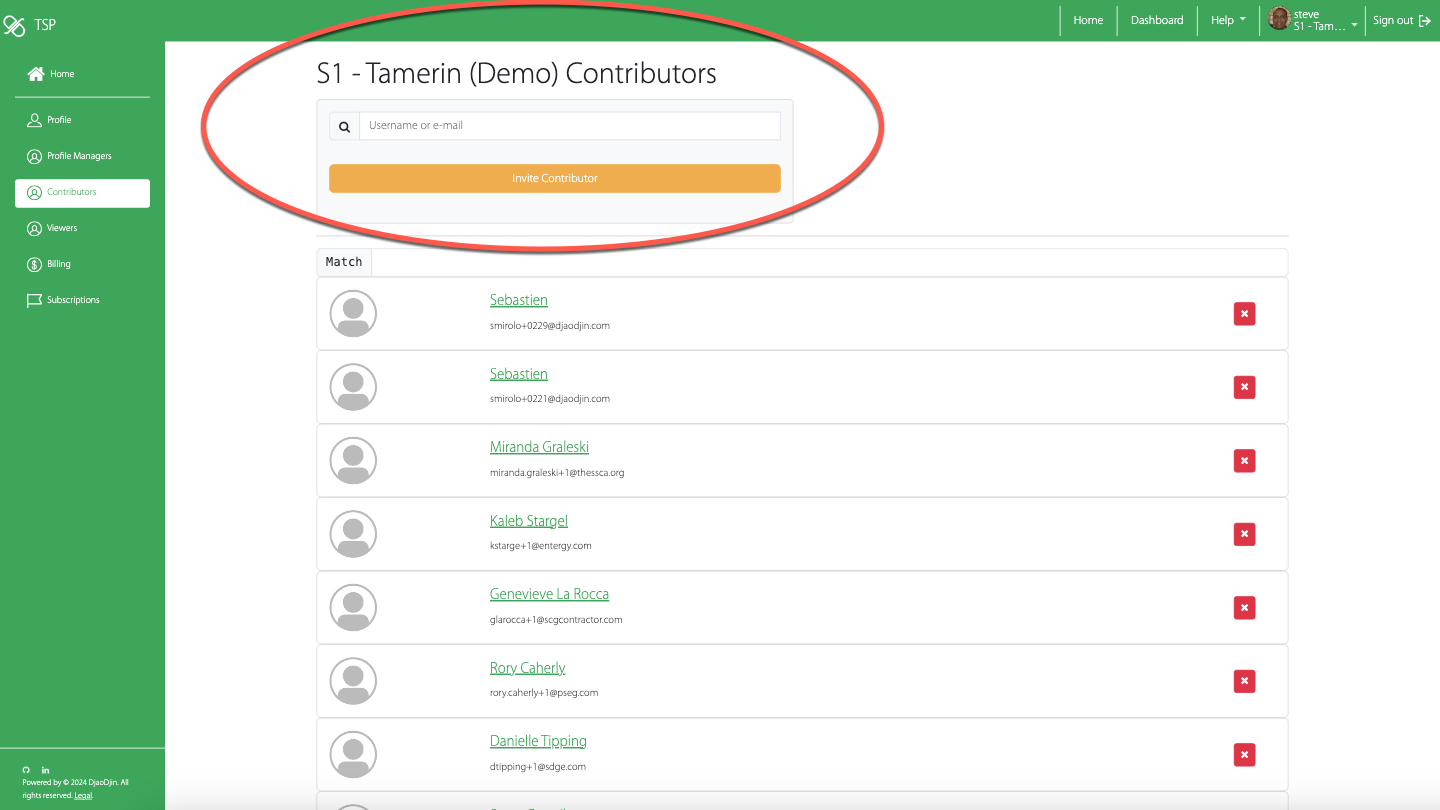
Type in the name of the colleague you wish to invite to help with a questionnaire's response, and click the Add Contributor button.
An email will be sent to the new contributor with a link to www.tspproject.org and instructions on how to sign up to TSP.
Note: You will have to follow-up with the colleague to explain what you require of them i.e. help completing the response on the online system.
Manage contributors
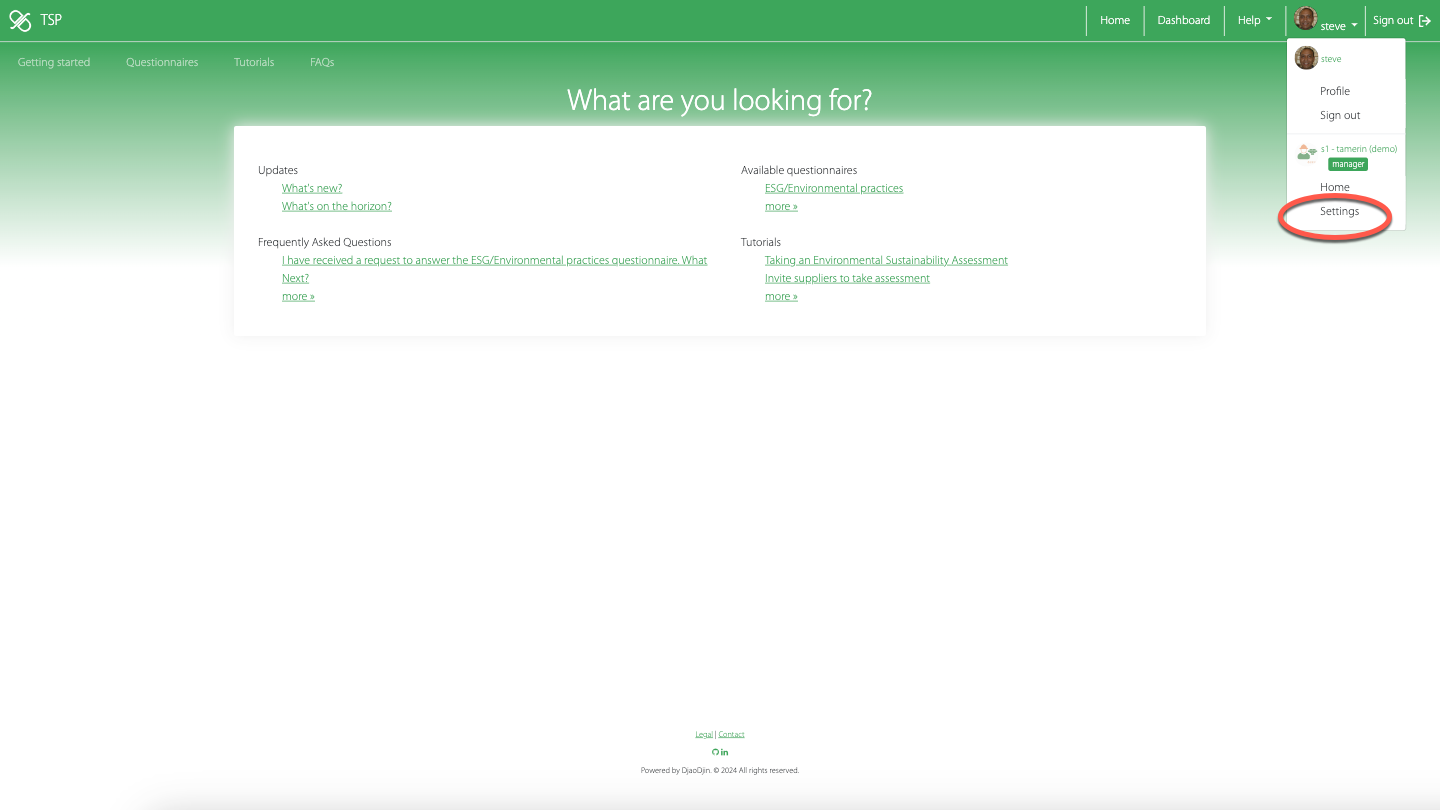
From any screen, click the profile menubar item option (top right), then Settings under the organization name, then either profile managers, contributors, or viewers (left sidebar).
- Profile Managers have full access to the organization profile and responses.
- Contributors can help complete a response but cannot add other contributors.
- Viewers can review and download responses for an organization without altering them.
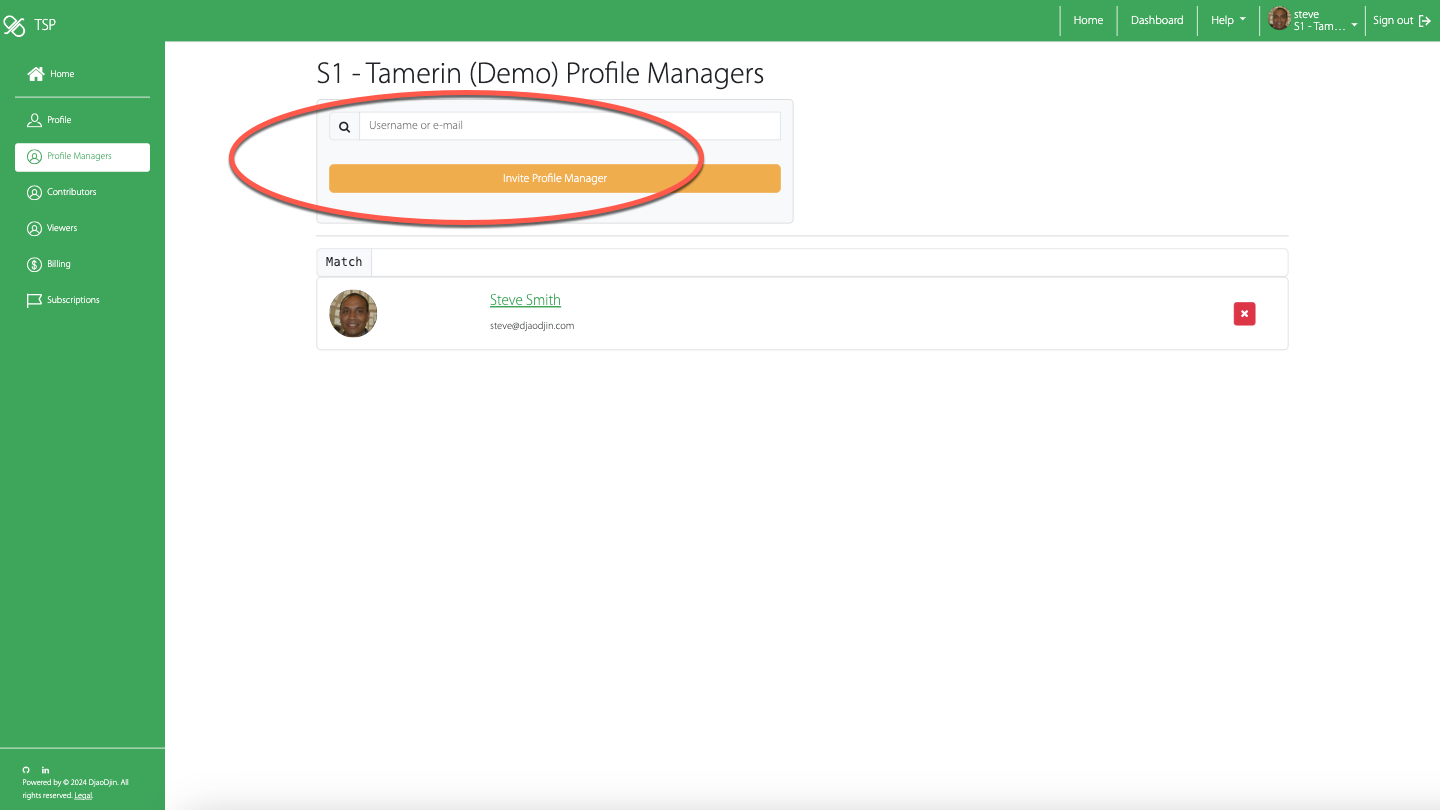
The following steps will show how to add profile managers. Adding and removing other roles follow similar steps.
Type in the name or email of the person you wish to add as a PROFILE MANAGER, and click the Add Profile Manager button.
An email will be sent to the new contributor with a link to www.tspproject.org and instructions on how to sign up to TSP.
Note: You may have to follow-up with the colleague to explain what you require of them - Completing a questionnaire, using the dashboards to invite suppliers, etc.
Invite a colleague to view dashboards
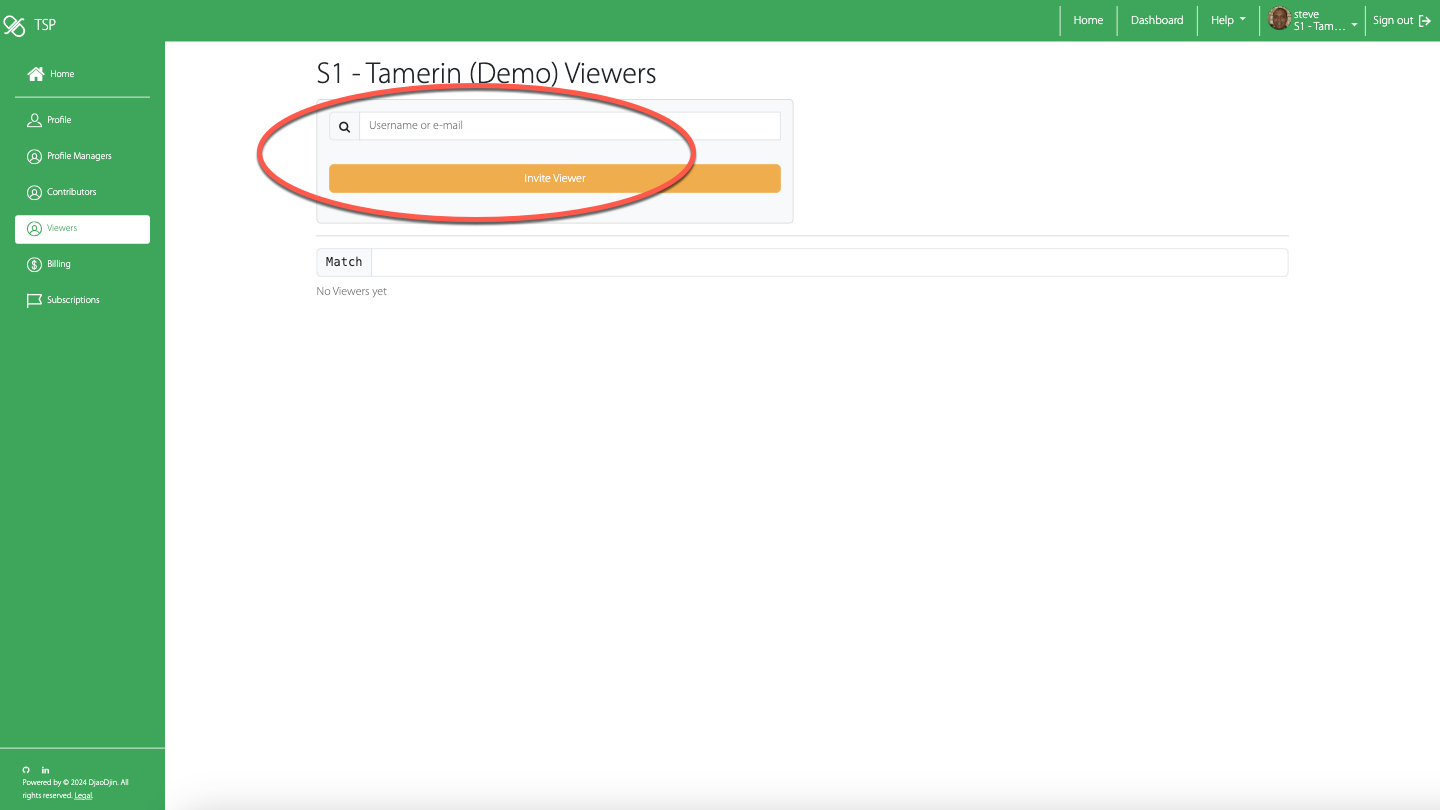
From any screen, click the profile menubar item option (top right), then Settings under the organization name, then viewers (left side of page).
Type in the name of the colleague you wish to invite to view the dashboards and click the Add Viewer button.
An email will be sent to the new VIEWER with a link to www.tspproject.org and instructions on how to sign up to TSP.
Note: You may have to follow-up with the colleague to explain what you require of them i.e. monitoring completion status of their suppliers, accessing individual scorecards.
Printing a response
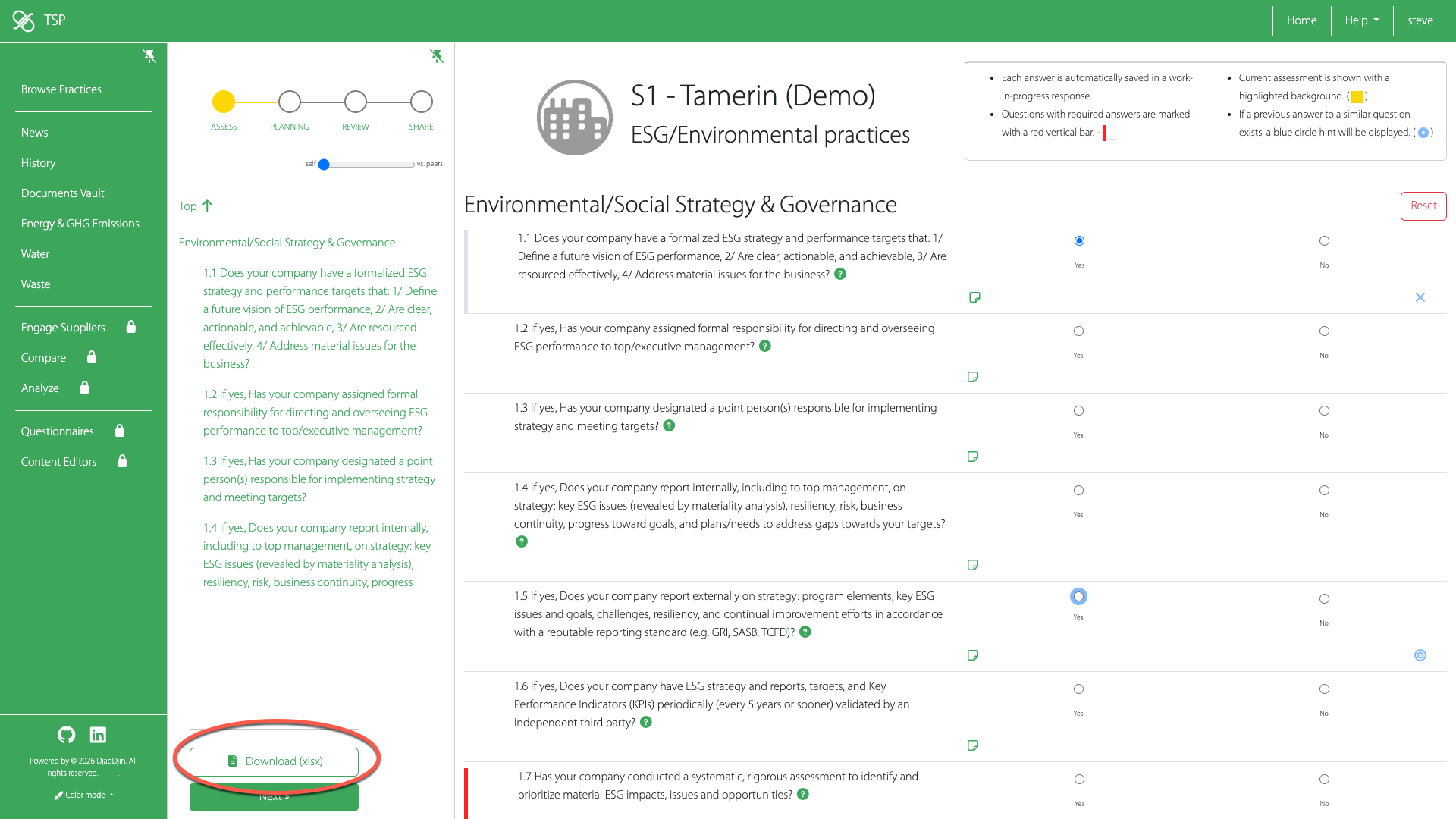
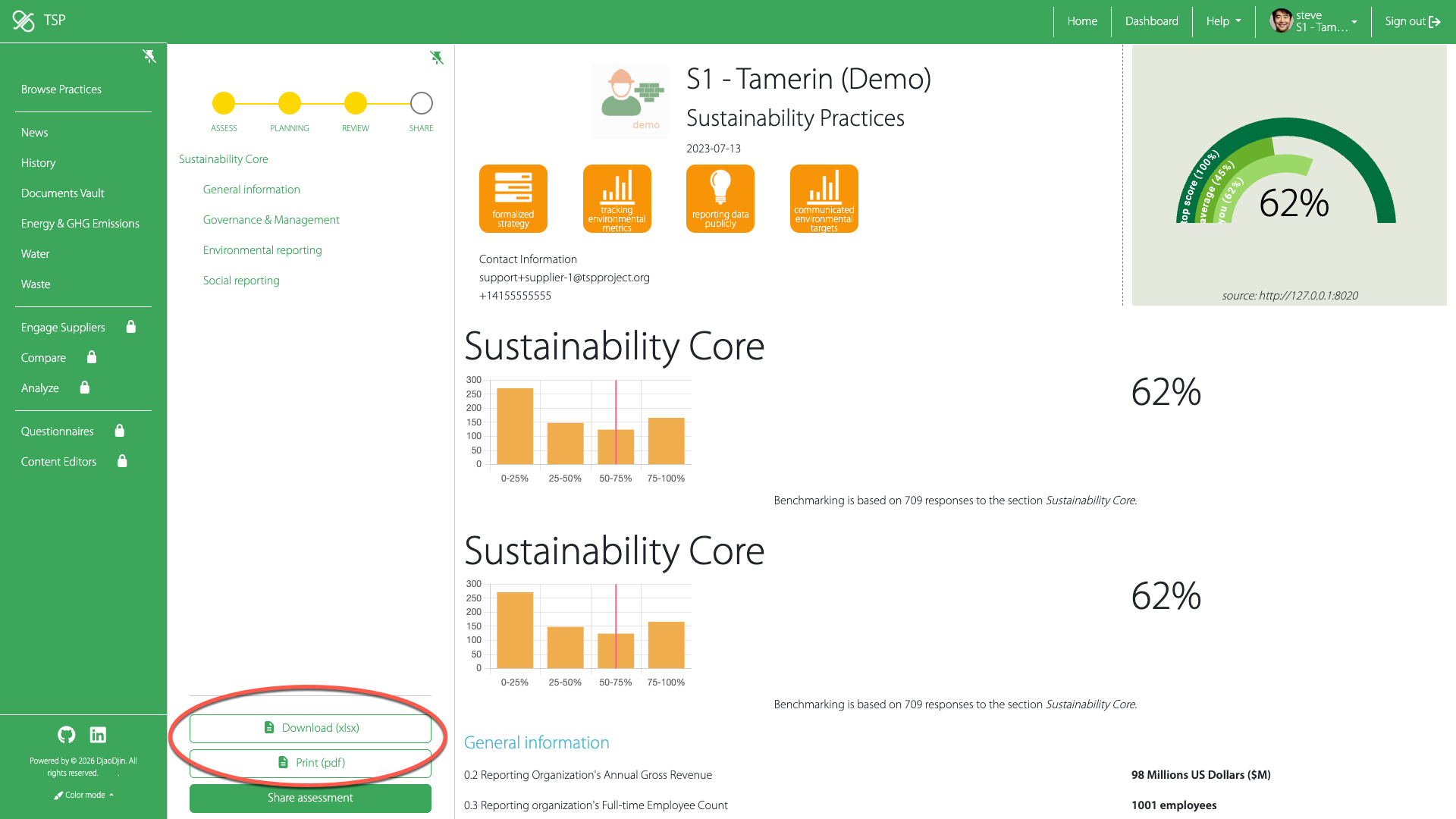
When you need to download a report as a spreadsheet, or print it as a PDF, You can do so on the REVIEW step, by clicking the Download or Print button respectively.
- Assuming you want to print a previous year response, click on History in the left sidebar.
- On the History page, click on the response you wish to print.
- Located on the bottom left of the page, click either Download (xlsx) or Print (pdf) if you wish a spreadsheet download or a PDF printout respectively.
Sharing a previous response
When you receive a request from a customer, or a stakeholder outside your organization, to share a report on TSP (this website), you can do so by following these steps:
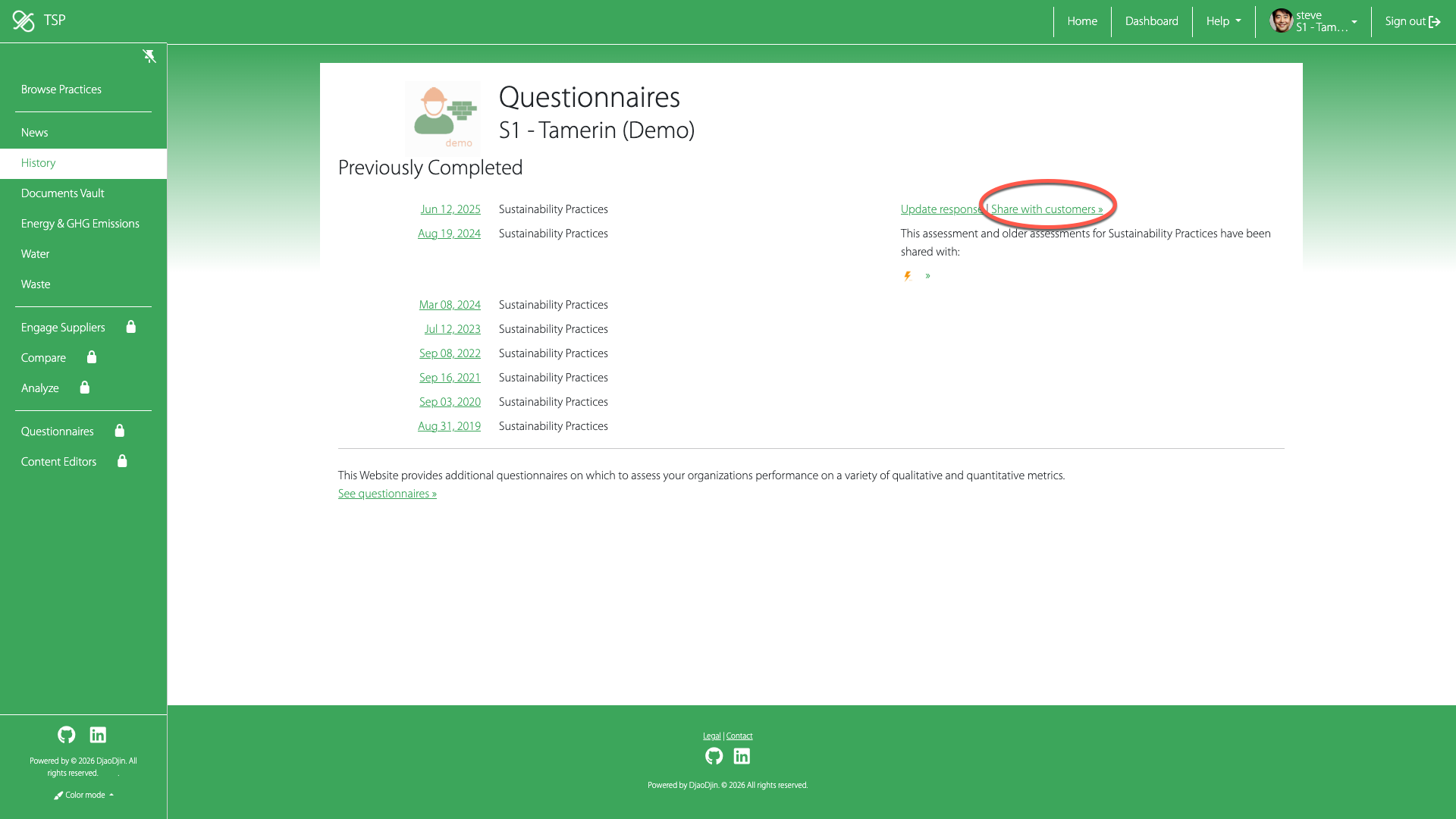
- Assuming you have recently completed the questionnaire and have no updates to make, click on History in the left sidebar.
- On the History page, click the Share with customers link next to most recent response you wish to share.
- All the requesting customers and external stakeholders will show up under "The following organizations would like to receive a copy ...". Click Accept to share a copy of the response with the requesting organization. The primary contact for that requesting organization will receive an e-mail that you have shared your latest organization's report with them. If the stakeholder organization you wish to share responses with is not listed, you can pro-actively send them a copy under the section Send a copy pro-actively to ...
Find a previous year answers
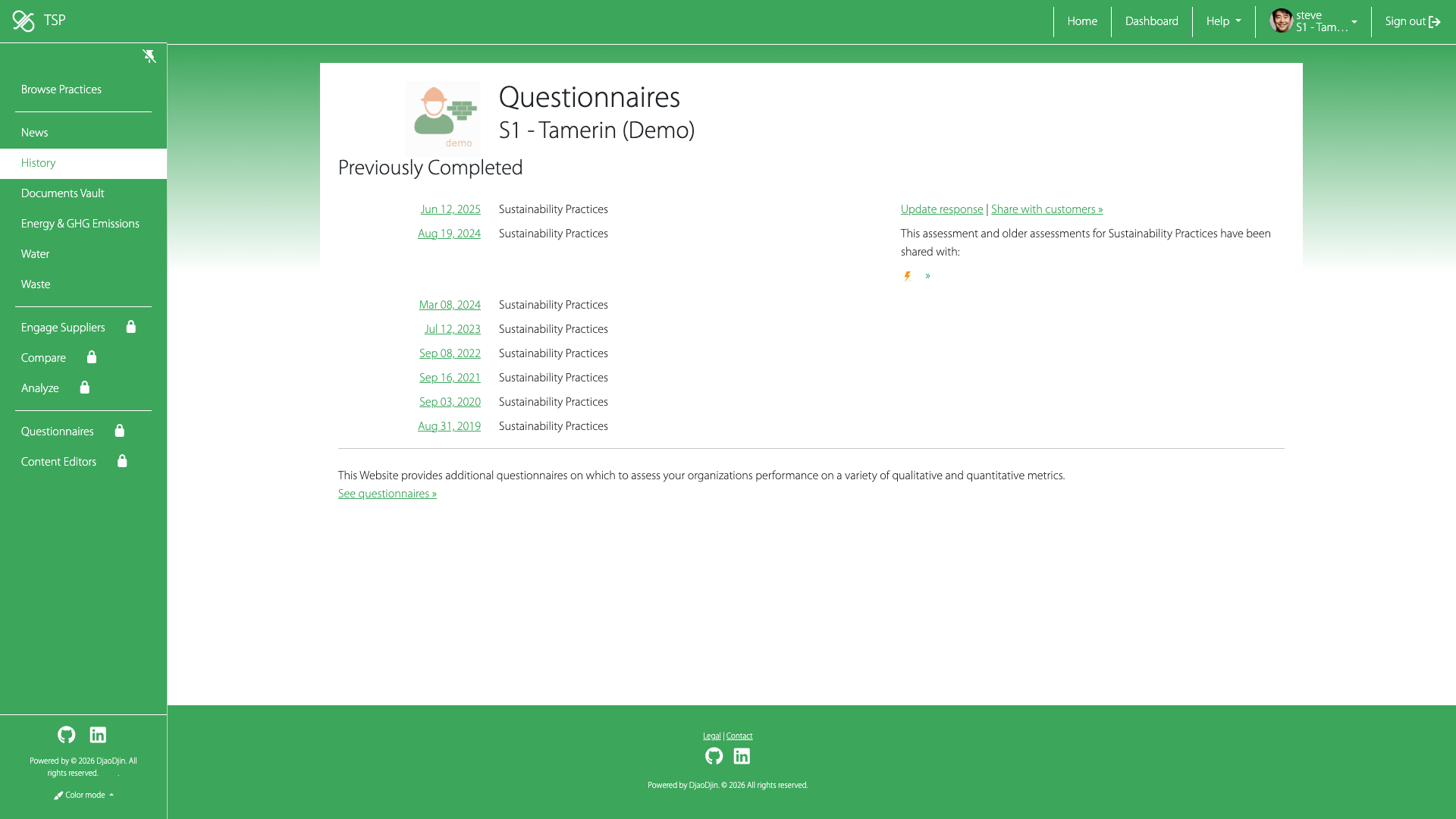
- Click on History in the left sidebar.
- On the History page, click on the response you wish to view.
Get started with Single Sign On
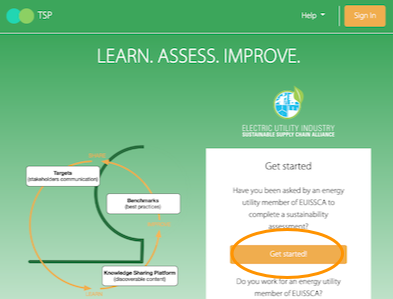
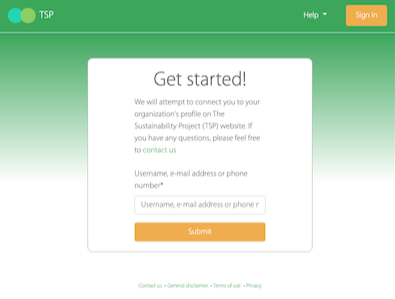
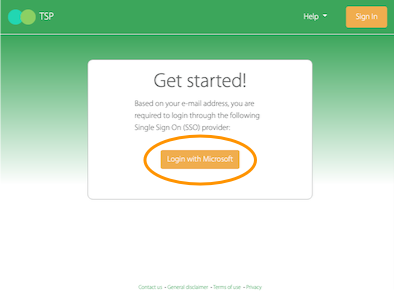
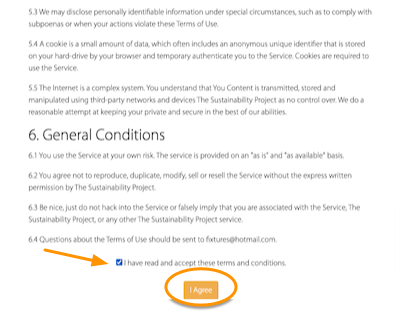
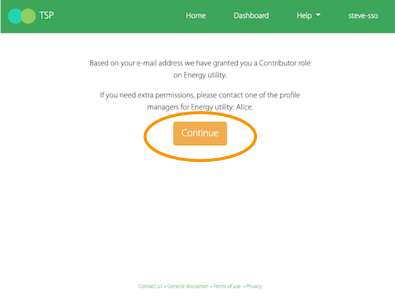
Once you enter your e-mail address, if your organization has chosen to use Single Sign On (SSO) login, you will be redirected to the SSO provider for your company domain.
(If you want to connect your organization profile to a SSO provider, please contact us.)
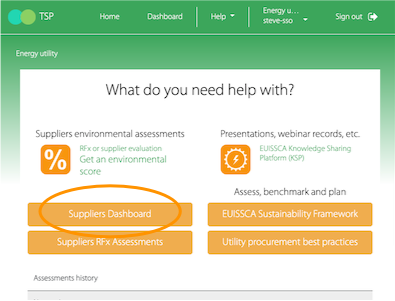
Landing on the application start page, you can browse the Knowledge Sharing Platform, access the suppliers assessments dashboard, and/or take an assessment of your organization itself.
If you need a video tour of the functionality of TSP, please contact us.
- Need additional help?
- Contact us